Arrange nested blocks using layout groups
Arrange nested blocks using layout groups
Use column groups for arrangements such as a photo on the left and several text blocks on the right.
Before you begin
Use a program with the relevant feature enabled, or your own settings page. Administrative operations require program management permission; team editing requires active membership and an editable page.
Step-by-step instructions
- Open an HTML editor whose palette includes Layout group(レイアウトグループ), for example Career profile → Page editing.
- Use the add button for Layout group in the left palette.
- Select the group on the canvas and configure its columns and widths in the inspector.
- Drag blocks into the intended group column: for example, a profile image on the left and heading/text blocks on the right.
- Stack blocks inside each column and adjust their horizontal arrangement and widths as needed. Selecting the group and selecting one of its children configure different objects.
- Check the columns and narrow-screen behavior in Preview, save the layout and reopen it to verify persistence.
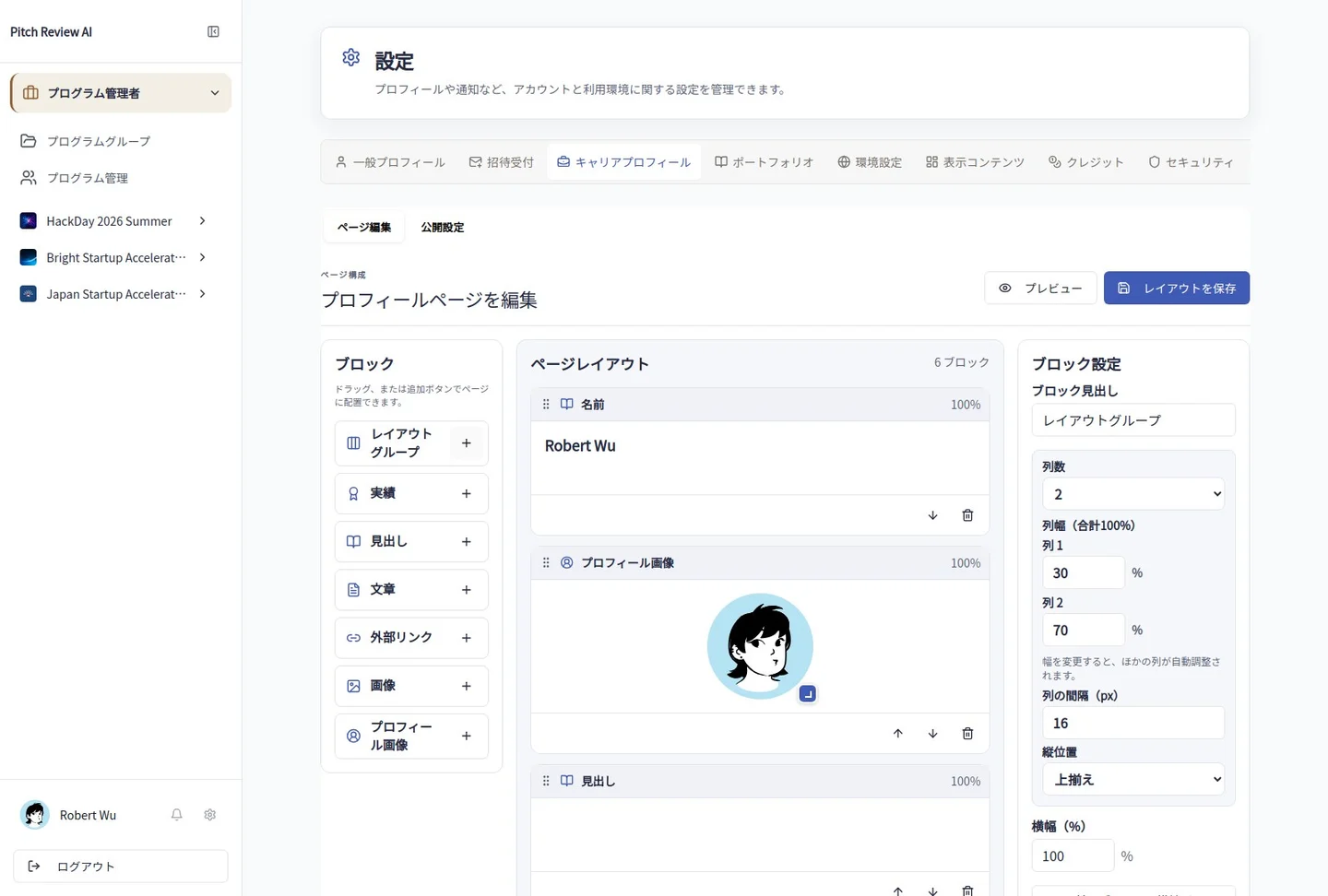
Actual Japanese-interface screenshot: layout group. Open the image to view it at full size.
Completion checks and precautions
Available blocks depend on the editor. Layout and disclosure are separate; putting information in a group does not authorize private information to become public.