Circular profile-image blocks and drag resizing
Circular profile-image blocks and drag resizing
Use a dedicated circular profile-image block, distinct from a normal image, and resize it with a drag handle.
Before you begin
Use a program with the relevant feature enabled, or your own settings page. Administrative operations require program management permission; team editing requires active membership and an editable page.
Step-by-step instructions
- Open Career profile → Page editing, or another HTML editor supporting the same block.
- Add Profile image(プロフィール画像)from the palette; this is distinct from a normal Image block.
- On career profiles, check the photo configured in General profile. In other supported editors, configure the appropriate image or company logo.
- Select the image on the canvas and drag its bottom-right handle to change the displayed image size.
- Use the inspector for the block's width and placement. Check the circular crop and surrounding spacing.
- Save and preview the layout. On career profiles, check the independent permission for publishing the photo.
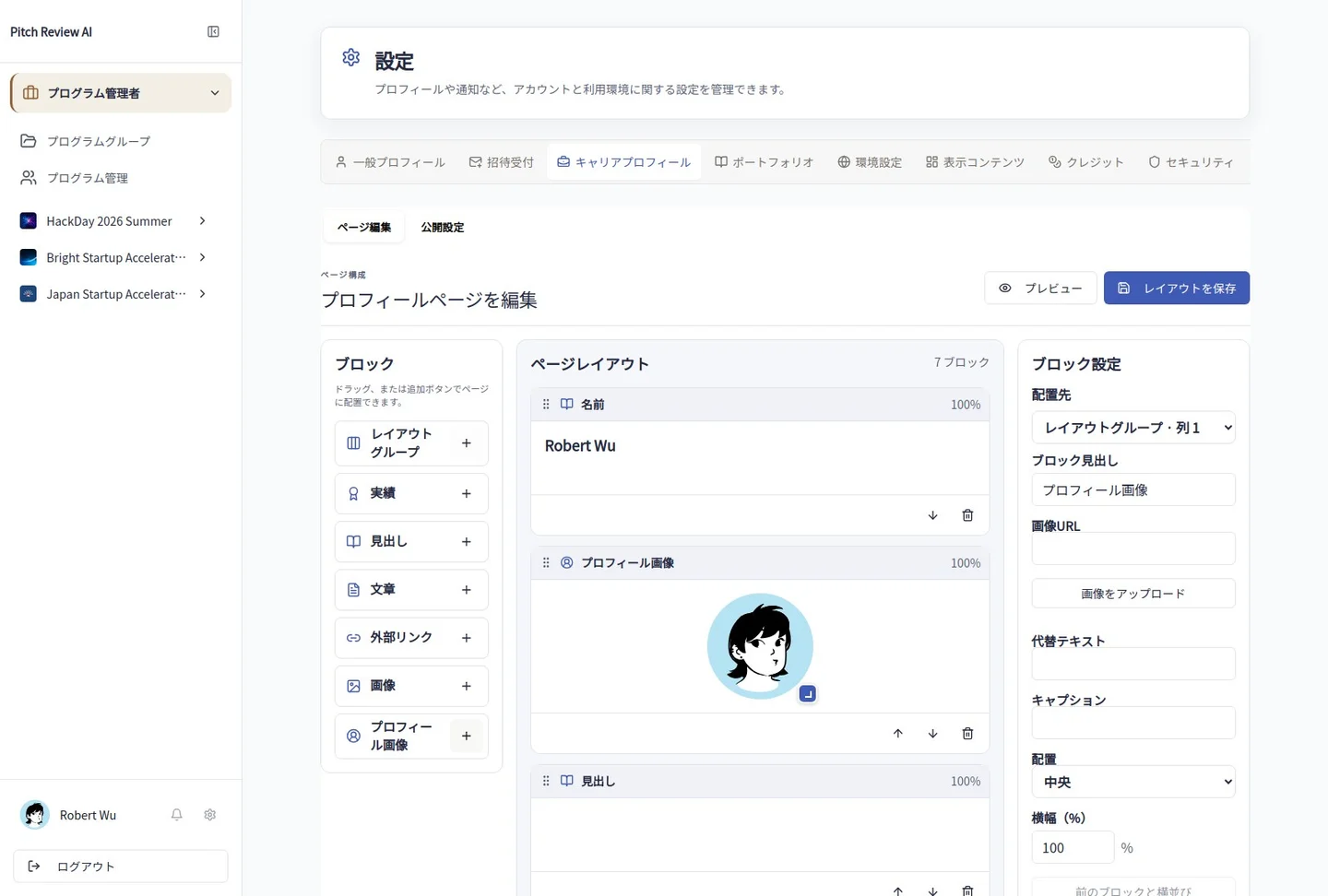
Actual Japanese-interface screenshot: profile image. Open the image to view it at full size.
Completion checks and precautions
Displayed image size and the column width occupied by its block are different settings. Missing source photos or consent are not replaced with generated portraits.