Create, duplicate and edit work-page templates
Create, duplicate and edit work-page templates
Keep multiple work-page formats and edit the template appropriate to each purpose.
Before you begin
Use a program with the relevant feature enabled, or your own settings page. Administrative operations require program management permission; team editing requires active membership and an editable page.
Step-by-step instructions
- Open the program's Works area(作品公開)and select Page templates(ページテンプレート).
- Choose New(新規)or Duplicate(複製)beside an existing format to create another template.
- Choose Edit(編集)for the required template. The HTML editor has a block palette, a page canvas and a settings inspector.
- Enter its name, add blocks from the left palette and select a block on the canvas to configure its content and input guidance on the right.
- Inspect Preview(プレビュー)and Save(保存)the draft. Read the confirmation before updating its published format.
- Return to the list to select another template. Use Request teams(チームに依頼)separately when you want to notify participants.
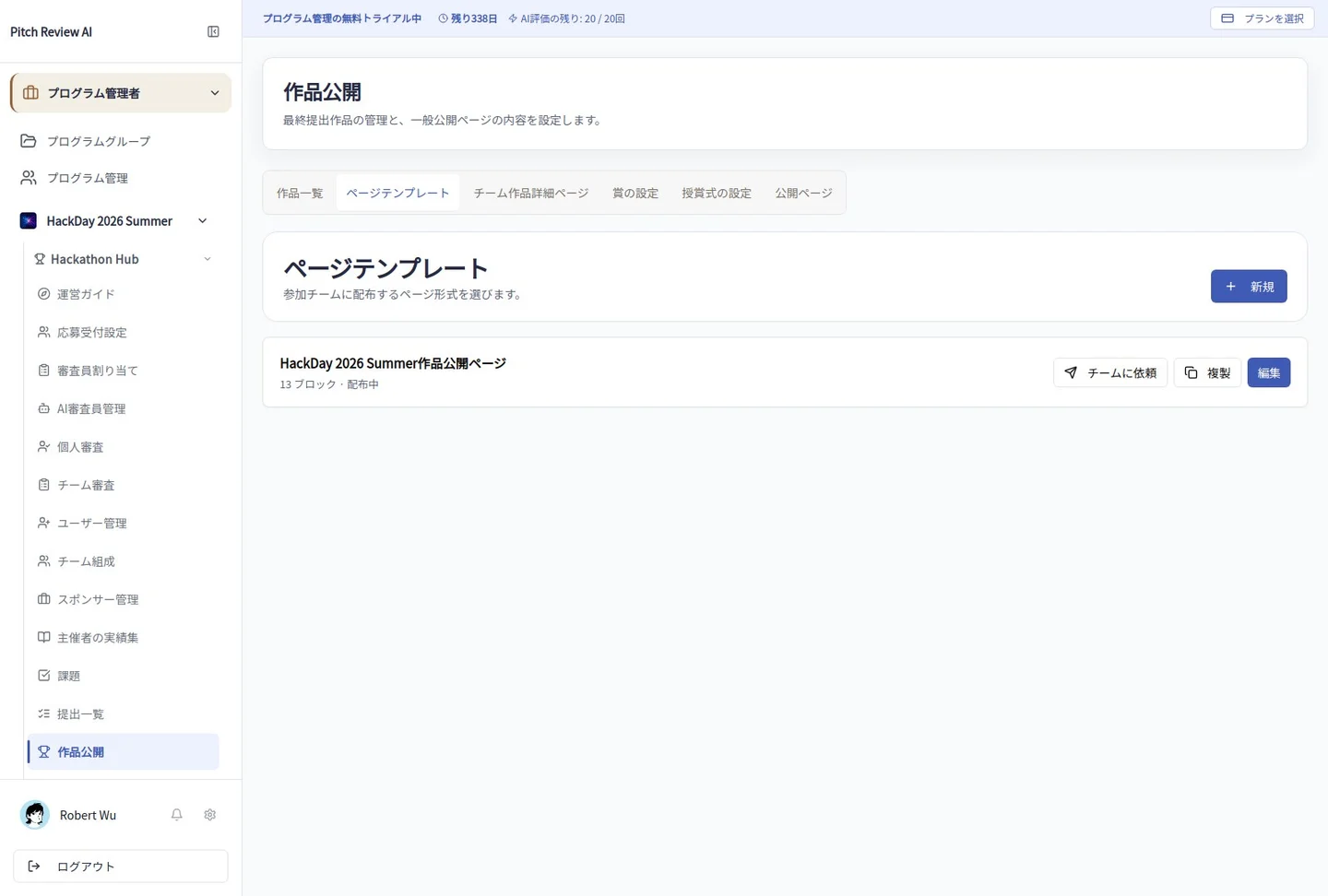
Actual Japanese-interface screenshot: templates. Open the image to view it at full size.
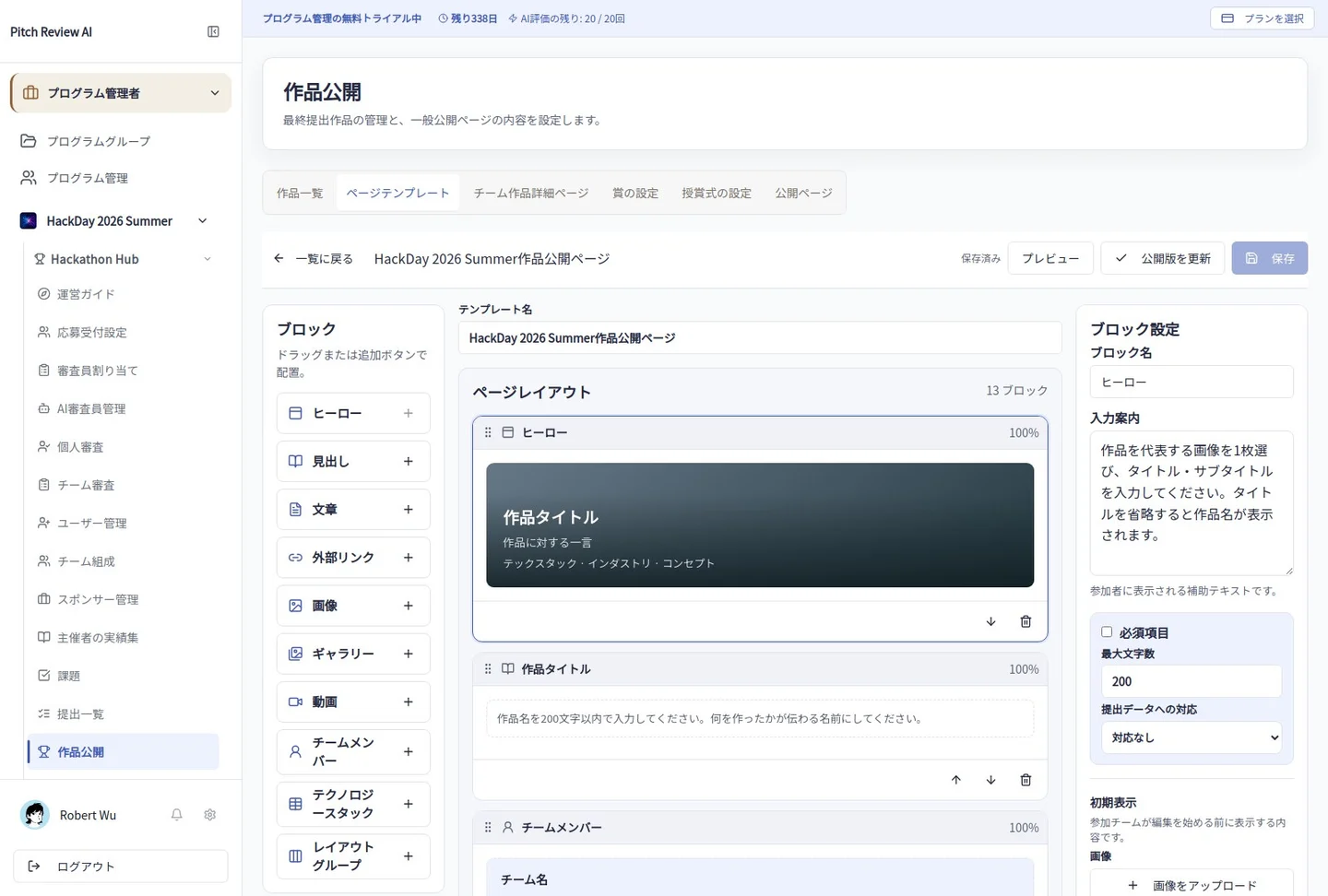
Actual Japanese-interface screenshot: work editor. Open the image to view it at full size.
Completion checks and precautions
Saving a format, publishing it, requesting team input and publishing a team's work are separate actions. Creating another template does not overwrite participants' existing drafts.